1. Basic controls
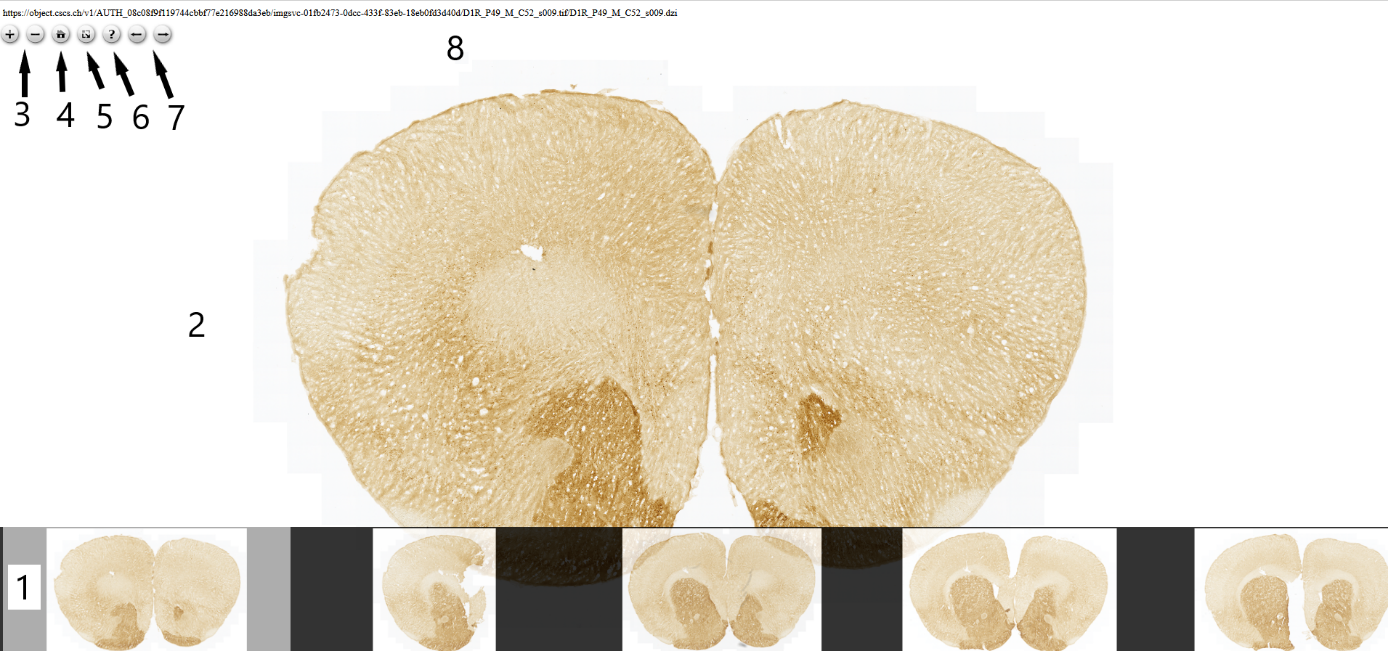
In Multi-Image-OSd viewer, serial section images (1) are represented in a filmstrip at the bottom of the webpage user interface, with the selected section image (2) in the main view.
In the upper panel, users can pan and zoom using the “+” and “-“ signs or the mouse scroll wheel (3); the home button (4) allow users to go back to the default field of view.
The next squared icon (5) allow users to toggle to a full screen view. The question mark (6) give access to Navigation tips (also described below).
The left and right arrows allow to go to the next image or back (7). The name of the image file (8).
Navigation tips
Mouse
Click and drag to pan the image
Use wheel to zoom in and out
Click to zoom in and hold shift and click to zoom out
Touchpad
Click and drag to pan the image
Two-fingers scroll allows zoom in and zoom out
Click to zoom in and hold shift and click to zoom out
Keyboard keys
“+” to zoom in, “-” to zoom out
Arrows or “w”, “s”, “a”, “d” keys to pan an image
“0” (zero) key resets an image
Mobile devices
Drag to pan the image
Double tap to zoom in
Pinch to zoom out, spread to zoom in